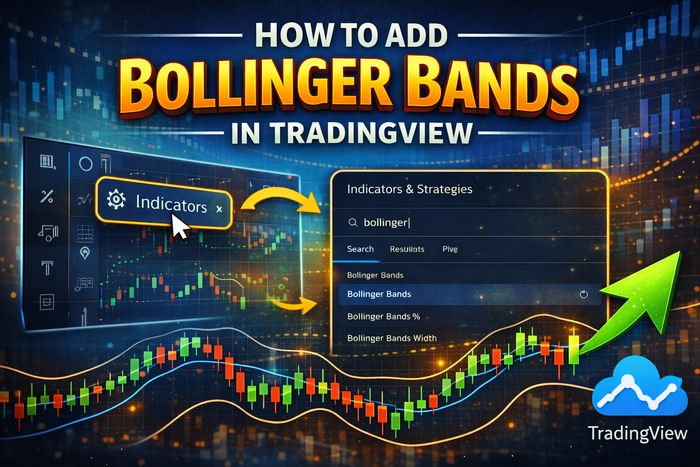
How to Add Bollinger Bands in TradingView (Desktop + Mobile)
If you’re learning technical analysis, Bollinger Bands are one of the first indicators you should master—especially for fast-moving markets like crypto. They help you visualize volatility, trend direction, and relative price extremes in one clean overlay. In this guide, you’ll learn exactly how to add Bollinger Bands in TradingView on desktop and mobile, how to customize the settings, how to save your layout as a template, and how to use Bollinger Bands correctly (without the most common beginner mistakes).
This article is written in a WordPress-ready format and includes a FAQ schema block for SEO. Educational content only; trading involves risk.
What Are Bollinger Bands?
Bollinger Bands are a volatility indicator built around a moving average. They consist of three lines: the middle band (usually a 20-period moving average), plus an upper band and lower band that expand and contract based on standard deviation (volatility).
- Middle Band: baseline trend reference (commonly 20 SMA).
- Upper Band: “high volatility edge” above the average.
- Lower Band: “low volatility edge” below the average.
In TradingView, Bollinger Bands are added as an overlay on your price chart (not a separate lower panel). Once enabled, you can adjust settings, colors, line thickness, background fill, and even apply the indicator to other data (like an oscillator), although most traders keep it on price.
If you want a deeper learning resource for your site, you can link internally to your own article about settings: Bollinger Bands best settings.

How to Add Bollinger Bands in TradingView (Desktop)
Adding Bollinger Bands on TradingView desktop takes less than a minute. Here’s the exact click path.
Step-by-step instructions
- Open TradingView and load any chart (crypto, forex, stocks—any symbol works).
- At the top of the chart, click Indicators.
- In the search bar, type: Bollinger Bands.
- Select Bollinger Bands (the standard built-in version).
- The indicator will appear immediately on your chart as three lines around price.
Fast tip: pin it to favorites
If you use Bollinger Bands frequently, hover over the indicator name in the search list and click the star icon (Favorites). This makes it easier to add in one click next time.
Where to find the Bollinger Bands settings on desktop
Once Bollinger Bands are on your chart, move your mouse to the top-left chart area where the indicator name appears and click the small gear/settings icon next to “Bollinger Bands.” You can also right-click the indicator name and choose Settings.
How to Add Bollinger Bands in TradingView (Mobile App)
The TradingView mobile app interface is slightly different, but the process is still straightforward. Use these steps on iOS or Android.
Step-by-step instructions (mobile)
- Open the TradingView app and select a chart.
- Tap the Indicators button (often shown as “fx” or an indicator icon depending on layout).
- Use the search bar and type Bollinger Bands.
- Tap the standard Bollinger Bands indicator to add it.
- To edit settings, tap the indicator name in your indicator list and open Settings.
Mobile tip: keep your chart clean
On small screens, too many indicators make signals harder to read. A strong beginner setup is: Bollinger Bands + Volume (or Bollinger Bands + RSI).

How to Customize Bollinger Bands in TradingView (Settings + Style)
TradingView lets you customize Bollinger Bands in three main areas: Inputs (logic), Style (appearance), and Visibility (which timeframes show the indicator).
1) Inputs: length, basis, and deviation
Open the Bollinger Bands settings and you’ll typically see:
- Length: the moving average period (default: 20).
- Basis: the type of moving average (often SMA by default; some traders prefer EMA).
- StdDev (Deviation): the multiplier (default: 2).
- Offset: shifts the indicator left/right (most traders keep this at 0).
2) Style: lines, colors, and background fill
- Line thickness: increase thickness if bands are hard to see.
- Band fill: use a light fill to make volatility changes visually obvious.
- Middle band emphasis: some traders make the middle band slightly thicker because it often acts like a “magnet” in ranges.
3) Visibility: show bands only on specific timeframes
If you day trade but don’t want bands on weekly charts, use the Visibility tab to control which timeframes display the indicator. This keeps your long-term charts clean and your intraday charts consistent.
Internal learning suggestion for your site: link to your own guide on day trading usage: Bollinger Bands workflow for crypto.
Best Bollinger Bands Settings in TradingView (Quick Presets)
If you want a reliable baseline in TradingView, start with 20,2 (Length 20 and Deviation 2). Then adjust only if your timeframe is extremely noisy or your instrument is unusually volatile.
Recommended presets
| Trading style | Timeframe | Suggested setting | Why it works |
|---|---|---|---|
| Day trading (balanced) | 5m–15m | 20,2 | Strong general-purpose balance of signals and reliability |
| Scalping (faster) | 1m–3m | 10–14,2 | More responsive; requires stricter confirmations |
| Noise reduction (smoother) | 1m–5m | 30,2 | Fewer false signals in choppy markets |
| High-volatility crypto | Any | 20,2.2–2.5 | Reduces constant band touches on extreme volatility spikes |
Beginner warning: band touch ≠ automatic reversal
A common mistake is to short every upper-band touch and buy every lower-band touch. In strong trends, price can “walk the band” for a long time. Always use context: trend vs range, key levels, and a confirmation cue (like volume or RSI).
How to Save Bollinger Bands as a Template or Layout in TradingView
Once you’ve added Bollinger Bands and customized your settings, save it so you can reapply the same configuration to any chart instantly.
Option A: Save the full chart layout
- Set up your chart (Bollinger Bands, timeframe, any extra indicators).
- Click Save (or the cloud/save icon) to save your layout.
- Name the layout something like “BB Day Trading” or “BB Swing Template.”
Option B: Save an indicator template (preferred for portability)
In TradingView, you can save your indicator setup as a template so you can apply it to other charts quickly. Look for the indicator template controls (often in the Indicators/Template area) and save your current indicator configuration. Then apply it to any new symbol with a couple clicks.
Best practice: create two templates—one for range/mean reversion and one for trend/continuation. Even with the same Bollinger Bands settings, the confirmation tools and chart markings often differ.
Troubleshooting: Bollinger Bands Not Showing (Common Fixes)
1) Bollinger Bands added but you can’t see them
- Check if the indicator is toggled hidden (eye icon) in your indicators list.
- Increase line thickness or change the color in Style.
- If you use dark mode, ensure the bands aren’t set to a very dark color.
2) Bands look “flat” or too wide
- Zoom in on the chart—sometimes scale makes bands look flat.
- Confirm the Length and Deviation are what you expect (e.g., 20 and 2).
- On extremely volatile instruments, try adjusting deviation slightly (e.g., 2 → 2.2).
3) Bands disappear on certain timeframes
Open the indicator settings and check the Visibility tab. You may have disabled the indicator on specific timeframes.
4) You added a custom Bollinger indicator by mistake
TradingView has many community scripts named similarly. If your results look strange, remove the indicator and add the standard built-in Bollinger Bands again from the official indicator list.
Crypto Workflow: Using TradingView with Exchanges
Many traders use TradingView for analysis and then execute trades on a crypto exchange. The advantage is simple: TradingView gives you consistent charting and templates, while your exchange handles execution, orders, and positions.
Popular choices many crypto traders consider
- BYBIT – often used for active trading workflows where fast execution and derivatives access matter.
- BITGET – commonly chosen by traders who want a straightforward interface and an active trading ecosystem.
- MEXC – frequently used by traders looking for broad market selection and fast-moving opportunities.
A simple TradingView + Bollinger Bands routine
- Mark structure: identify the nearest range, support/resistance, and recent swing points.
- Label environment: trend day (band walk) vs range day (mean reversion to middle band).
- Use one trigger: squeeze breakout, band-touch rejection, or pullback to middle band (choose one).
- Define invalidation: where the trade is proven wrong (not a random stop).
- Review: keep settings stable long enough to learn what “normal” looks like on your instrument.
Disclosure: This article may contain affiliate links. If you use them, we may earn a commission at no extra cost to you.

FAQ: How to Add Bollinger Bands in TradingView
How do I add Bollinger Bands in TradingView?
On desktop, click Indicators, search for Bollinger Bands, then click the built-in indicator to add it to your chart. On mobile, open the indicator menu, search for Bollinger Bands, and tap to add.
Where do I change Bollinger Bands settings in TradingView?
Click the small gear/settings icon next to the “Bollinger Bands” label on your chart (desktop), or tap the indicator in your indicators list and open Settings (mobile).
What is the best Bollinger Bands setting in TradingView?
A reliable default is 20,2 (Length 20, Deviation 2). Scalpers may test 10–14 periods for faster signals, while high-volatility crypto traders sometimes widen deviation slightly (2.2–2.5).
Why can’t I see Bollinger Bands after adding them?
The indicator may be hidden (eye icon), the lines may blend with your chart colors, or visibility may be disabled on that timeframe. Check the indicator list, then adjust style and visibility settings.
Can I save Bollinger Bands as a template in TradingView?
Yes. Save either your full chart layout or an indicator template so you can apply the same Bollinger Bands configuration to any symbol quickly.